> For the complete documentation index, see [llms.txt](https://docs.scepman.com/llms.txt). Markdown versions of documentation pages are available by appending `.md` to page URLs; this page is available as [Markdown](https://docs.scepman.com/certificate-management/active-directory/group-policy.md).
# Group Policy
This certificate enrollment founds on the [XCEP](https://learn.microsoft.com/en-us/openspecs/windows_protocols/ms-xcep) and [WSTEP](https://learn.microsoft.com/en-us/openspecs/windows_protocols/ms-wstep/) protocols that all recent Windows versions natively support. In Active Directory environments, the necessary settings can be applied via group policies (GPO), to make AD-joined computers enroll certificates from SCEPman.
In this scenario, three group policy settings are required for a fully automated certificate deployment.
{% stepper %}
{% step %}
### Registration of the CEP server
The CEP (Certificate Enrollment Policy) server (part of SCEPman) will provide an authenticated client a policy containing all certificate templates configured on SCEPman for Active Directory enrollment. The CEP server needs to be added on the clients in the registry. Windows includes GPO templates to configure the necessary settings in the GUI.
#### Policy Configuration
For the certificate templates `Device` and `DC`, you have to go into the *Computer Configuration* hive. For `User`, navigate in the *User Configuration* hive. If you use certificate templates of both kinds, you'll have to configure both. In that case, you'll usually use two GPOs, one applied to the users with the User Configuration and one applied to computers with the Computer Configuration.
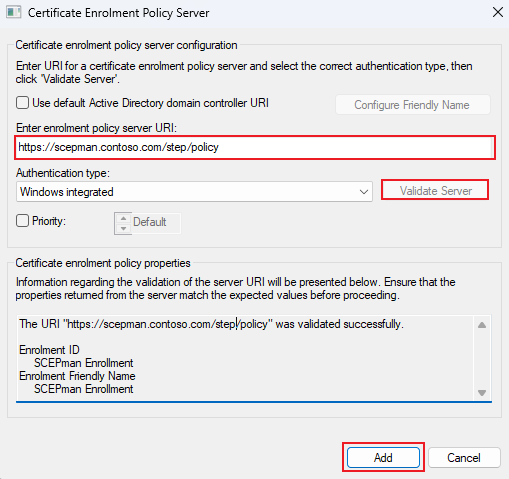
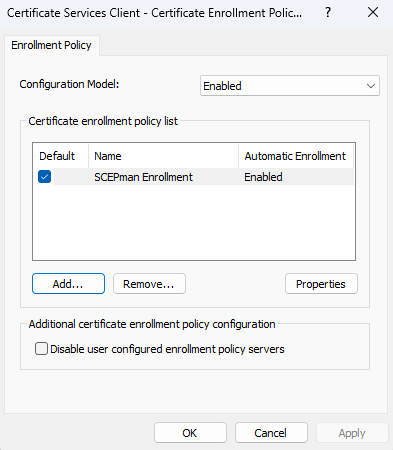
In the setting, add a new CEP server in the list and enter the policy server URI in the respective input. You can copy this URI from your SCEPman's homepage. It follows the scheme of `https://scepman.contoso.com/step/policy`. After entering and validating the CEP server you can finish the setting by adding it and confirming the dialog.
{% hint style="warning" %}
In the configuration process, the client already makes a validation call to the CEP server. Therefore, the account context used for the configuration must have permission to access SCEPman's CEP endpoint, i.e. authenticate with Kerberos, and outgoing network access to SCEPman port 443.
{% endhint %}
{% hint style="warning" %}
Please see the [Known Issues](/certificate-management/active-directory/general-configuration.md#known-issues) section in case you receive an error during the CEP server validation.
{% endhint %}
{% hint style="info" %}
If you are using the SCEPman CEP server in parallel to your existing ADCS, you need to choose a default server and make sure you keep the existing enrollment policy.
{% endhint %}
{% endstep %}
{% step %}
### Enable Auto-Enrollment
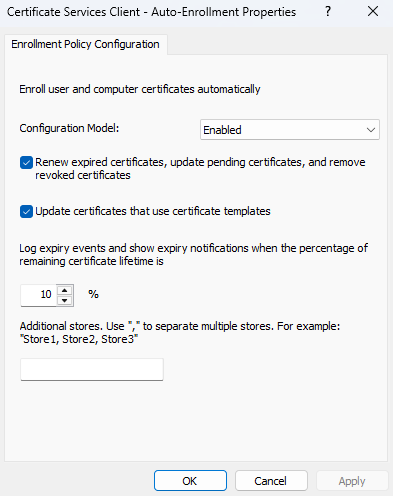
With the registered CEP server, your users/computers can request certificates from SCEPman. Usually, you want them to do this automatically without user interaction and for this, you have to enable Auto-Enrollment. Note that it may already be enabled if you were using Autoenrollment before with Microsoft Active Directory Certificate Services (AD CS).
Make sure to check `Update certificates that use certificate templates` to enable the automatic enrollment.
{% endstep %}
{% step %}
### Install Trusted Root CA
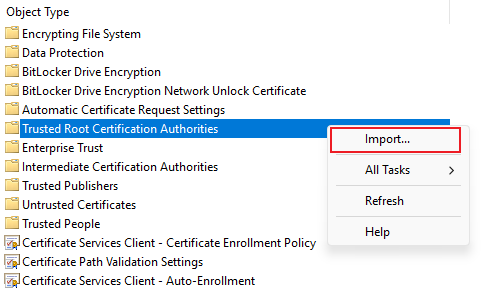
With the enrollment policy server and auto-enrollment settings in place, you just need to make sure that your target devices or users are trusting your SCEPman CA certificate. For this to happen you will need to import the CA certificate in the corresponding GPO setting.
Download your SCEPman's CA certificate from its homepage and make sure to import it in this dialogue.
{% endstep %}
{% endstepper %}
---
# Agent Instructions
This documentation is published with GitBook. GitBook is the documentation platform designed so that both humans and AI agents can read, navigate, and reason over technical content effectively. Learn more at gitbook.com.
## Querying This Documentation
If you need additional information that is not directly available in this page, you can query the documentation by asking a question.
Perform an HTTP GET request on the following URL with the `ask` and `goal` query parameters:
```
GET https://docs.scepman.com/certificate-management/active-directory/group-policy.md?ask=&goal=
```
`ask` is the immediate question: it should be specific, self-contained, and written in natural language.
`goal` is what the user is ultimately trying to achieve, the reason they need the answer. Sharing it helps GitBook give you a better, more relevant answer. A goal is most helpful when it describes the outcome the user wants rather than restating the question. For example, with `ask=how do I create an API token`, a goal like `automate deployments from our CI pipeline` lets GitBook tailor the answer to that use case.
The response will contain a direct answer to the question and relevant excerpts and sources from the documentation.
Use this mechanism when the answer is not explicitly present in the current page, you need clarification or additional context, or you want to retrieve related documentation sections.