> For the complete documentation index, see [llms.txt](https://docs.scepman.com/llms.txt). Markdown versions of documentation pages are available by appending `.md` to page URLs; this page is available as [Markdown](https://docs.scepman.com/ja/scepman-nodepuroi/deployment-guides/scenarios/certificate-based-authentication-for-entra-id.md).
# Entra ID の証明書ベース認証
証明書ベース認証は、Entra ID リソースにアクセスするための強力なセキュリティ代替手段を提供します。この記事では、証明書管理を簡素化するために証明機関として SCEPman を利用し、この方法を構成する手順を説明します。
## SCEPman CRL を有効にする
{% content-ref url="/pages/3d7774e878b5919ce290caea39380ee5bf346fbf" %}
[CRL の有効化](/ja/zheng-ming-shu-guan-li/manage-certificates/enabling-crl.md)
{% endcontent-ref %}
Entra ID は証明書を検証するために CRL を必要とします。CRL を利用できるように、アプリ サービスで次の環境変数を設定してください:
[AppConfig:CRL:RequestToken](https://docs.scepman.com/scepman-configuration/application-settings/crl#appconfig-crl-requesttoken)
これは、CRL をダウンロードできるよう URL で使用されるカスタム文字列に設定します。
[AppConfig:CRL:Source](https://docs.scepman.com/scepman-configuration/application-settings/crl#appconfig-crl-source)
これは、SCEPman が CRL を生成する元となるソースです。これが次に設定されていることを確認してください `ストレージ`
## Entra ID のセットアップ
{% stepper %}
{% step %}
### Entra Security Center で PKI を作成
Entra ID で、次に移動します **保護** > **セキュリティ センター** > [**公開鍵基盤**](https://entra.microsoft.com/#view/Microsoft_AAD_IAM/SecurityMenuBlade/~/PublicKeyInfrastructure/menuId/SecurityCenter/fromNav/)**,** をクリックします *PKI を作成* し、対応する表示名を選択します。
{% endstep %}
{% step %}
### 証明機関を追加
新しく作成した PKI に移動し、次をクリックします *証明書機関を追加* SCEPman インスタンスの CA 証明書をアップロードします。この証明書は、右側のメニューにあるホームページから取得できます(*CA 証明書を取得*).
証明書失効リストの URL には、次の形式で URL を入力できます:
```
https://scepman.contoso.com/crl/pem/{YourCrlRequestToken}
```
{% hint style="warning" %}
必ず次を含めてください `/pem/` を URL のパスに含めてください。Entra は既定の DER 形式を使用すると互換性の問題が発生する場合があります。
{% endhint %}
これで、次のような証明書機関が作成されたはずです:
{% endstep %}
{% step %}
### 認証方法で CBA を有効にする
CA を用意したので、次に進んで Entra ID で証明書ベース認証を有効にできます **保護** > **認証方法** > [**ポリシー**](https://entra.microsoft.com/#view/Microsoft_AAD_IAM/AuthenticationMethodsMenuBlade/~/AdminAuthMethods/fromNav/)
次に移動します *証明書ベース認証* ポリシーを有効にし、すべてのユーザーまたは特定のグループのいずれかがこの方法を使用できるようにします:

{% endstep %}
{% step %}
### 証明書ベース認証を構成する
に切り替えて *構成* タブを開き、各オプションを順に確認します:
**CRL 検証を要求する**:✅
これは、この方法が提供するセキュリティの重要な部分です。CRL により、どの証明書が失効しており、したがって認証に使用できないかを Entra ID が把握できるためです。
**発行者ヒント** :✅
発行者ヒントを有効にすると、認証時に表示される証明書は、構成済みの CA によって発行されたものだけになります。
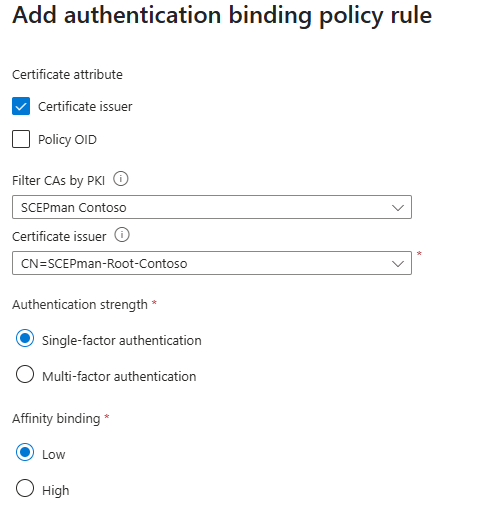
認証バインディングの既定の設定はそのままにし、先ほど作成した証明書機関を許可するルールの作成に進みます:
**認証強度**:
これは、この CA を使用した認証の重みを定義します。次を選択した場合 *単一要素認証*、アクセスするアプリケーションによっては、別の認証方法が必要になる場合があります。
**アフィニティ バインディング**:
アフィニティ バインディングは、認証を許可するために証明書に必要な詳細を定義し、ユーザー オブジェクト内の対応するデータと一致している必要があります。SCEPman は現在、ユーザー オブジェクトに証明書情報を追加できないため、これを次に設定することを推奨します **Low** 必要な情報を手動で構成しない限り。
{% hint style="warning" %}
認証強度とアフィニティ バインディングの設定は、特定のユースケースや、この認証方法で保護したいアカウントの種類に大きく依存します。特権の高いユーザーを保護したい場合は、高いアフィニティを実現するために、それらのユーザー アカウントに証明書情報を手動で追加することを検討してください。
{% endhint %}
{% endstep %}
{% endstepper %}
## 使用方法
構成が整うと、ユーザーは次を選択できます *証明書またはスマート カードを使用する*:
すると、認証に使用する証明書の選択を求められます。
## 高いアフィニティ バインディングのための証明書マッピングを手動で追加する
高いアフィニティ バインディングのみを使用して CBA を有効にしたい場合は、ユーザーの許可情報に証明書の詳細を手動で入力できます。
Entra ID のユーザー プロパティに移動して編集し、次に **証明書ユーザー ID**:
これらの ID に必要な形式は、認証方法のユーザー バインディングで構成されているフィールドによって異なります。形式の一覧は、対応する [Microsoft documentation](https://learn.microsoft.com/en-us/entra/identity/authentication/concept-certificate-based-authentication-certificateuserids#supported-patterns-for-certificate-user-ids).
の例 *SHA1PublicKey* バインディング:
```
X509:9600e49d740011187e5c734bab4a3d5d18d2a87a
```
これは、証明書のサムプリントを使用してユーザーの ID を強固に対応付けています。
---
# Agent Instructions
This documentation is published with GitBook. GitBook is the documentation platform designed so that both humans and AI agents can read, navigate, and reason over technical content effectively. Learn more at gitbook.com.
## Querying This Documentation
If you need additional information that is not directly available in this page, you can query the documentation dynamically by asking a question.
Perform an HTTP GET request on the current page URL with the `ask` query parameter, and the optional `goal` query parameter:
```
GET https://docs.scepman.com/ja/scepman-nodepuroi/deployment-guides/scenarios/certificate-based-authentication-for-entra-id.md?ask=&goal=
```
`ask` is the immediate question: it should be specific, self-contained, and written in natural language.
`goal` is optional and describes the broader end goal you are ultimately trying to accomplish on behalf of the user. GitBook uses it to tailor the answer towards what is most useful for that goal.
The response will contain a direct answer to the question and relevant excerpts and sources from the documentation.
Use this mechanism when the answer is not explicitly present in the current page, you need clarification or additional context, or you want to retrieve related documentation sections.